.svg)
How to Send Bulk WhatsApp Messages in 2026


You have 4,000 customers who've agreed to hear from you on WhatsApp, and one announcement to send them.
Copying and pasting the message into 4,000 chats isn't an option. The WhatsApp Business app's broadcast lists only reach a few hundred people each and bulk-sending tools that promise a shortcut can put your number at risk.
There is an official way to do it, and it's simpler than most people expect. Each customer receives your message as a private chat, not in a group, and nobody can see who else got it.
This guide shows you how, covering the rules that keep your number safe and how to send your first campaign step by step.
Official vs. unofficial tools: why one gets numbers banned
Search for a way to send WhatsApp messages at scale and you’ll find plenty of Chrome extensions and desktop apps promising to message thousands of numbers, with no setup and no approval.
Most of them work by controlling WhatsApp Web or a phone, typing and clicking much faster than a person could. That breaks WhatsApp’s Terms of Service, which don’t allow automated or bulk messaging through unauthorized tools.
WhatsApp actively detects this kind of activity, and numbers that use these tools can be restricted or banned. If your business number is how customers reach you, that’s a serious risk for a shortcut. We cover the risks in more detail in our guide to sending automated WhatsApp messages without getting banned.
There are two official options instead.
1. Broadcast lists in the WhatsApp Business app
The free WhatsApp Business app lets you send one message to a broadcast list of up to 256 contacts. It’s a good fit for a small business with a short list. But there are two catches: you have to manage lists by hand, and only people who’ve saved your number in their contacts receive the message.
2. The WhatsApp Business Platform
The WhatsApp Business Platform (often called the API) is Meta’s official way for businesses to message customers at scale. You access it through a provider like Heyy, and it’s built for sending to thousands of people: personalized templates, audience targeting, delivery tracking, and a shared inbox for the replies.
While recipients don’t need to have saved your number, they need to have opted in to hear from your business, which brings us to the rules.
The rules for bulk messaging
The WhatsApp Business Platform lets you message thousands of people, but it comes with rules. Follow them and your number stays healthy.
Opt-in. Meta requires businesses to get permission before messaging people on WhatsApp. The opt-in has to make clear that the person is agreeing to hear from your business, and name your business. A checkbox at checkout, a sign-up form, or a “want updates here?” in the chat all work. A list you bought, scraped, or imported from an old spreadsheet doesn’t.
Approved templates. Bulk messages are messages you start, so each one has to use a template that Meta has approved. A template is a pre-written message with variables, like {{name}} or {{order_number}}, that fill in for each person.
Template categories. Every template belongs to a category, and the category matters:
- Marketing: promotions, product launches, offers, and re-engagement messages
- Utility: reminders and updates about something the customer already did, like an order, booking, or payment
The category affects what you pay and how strictly the message is treated. And if you add a promotion to a utility message, like a discount code at the bottom of a delivery update, it counts as marketing.
Messaging limits. According to Meta’s messaging limits documentation, new business portfolios can message up to 250 different people outside the 24-hour customer service window in a rolling 24 hours. The limit rises automatically when your messages are high quality and you’ve used at least half your current limit in the last 7 days. For large lists, that means building up over time rather than sending to everyone on day one.
Quality rating. Meta watches how people react to your messages. If lots of recipients block you or report your messages as spam, your quality rating drops, and that can hold back your limit or restrict your sending.
What bulk WhatsApp messages cost in 2026
Meta charges for each template message that’s delivered, not just sent. The price depends on two things: the template’s category and the country of the person receiving it. Marketing messages generally cost more than utility messages.
There’s one more cost to plan for. From October 1, 2026, Meta also charges for replies to customers inside the 24-hour window. So when your campaign gets people talking, and a good one should, every reply your team or AI sends is charged too.
To estimate what a campaign will cost:
- Count how many people will receive it, by country.
- Multiply by Meta’s rate for that category in each country.
- Add an allowance for the replies you expect to send.
Meta updates its rates regularly, so check its WhatsApp pricing page for current figures before you budget. Your WhatsApp provider’s plan comes on top of Meta’s message charges.
How to send bulk WhatsApp messages with Heyy
Heyy is an official Meta partner, built on the WhatsApp Business Platform. Here’s how to send your first campaign.
Step 1: Connect your WhatsApp number
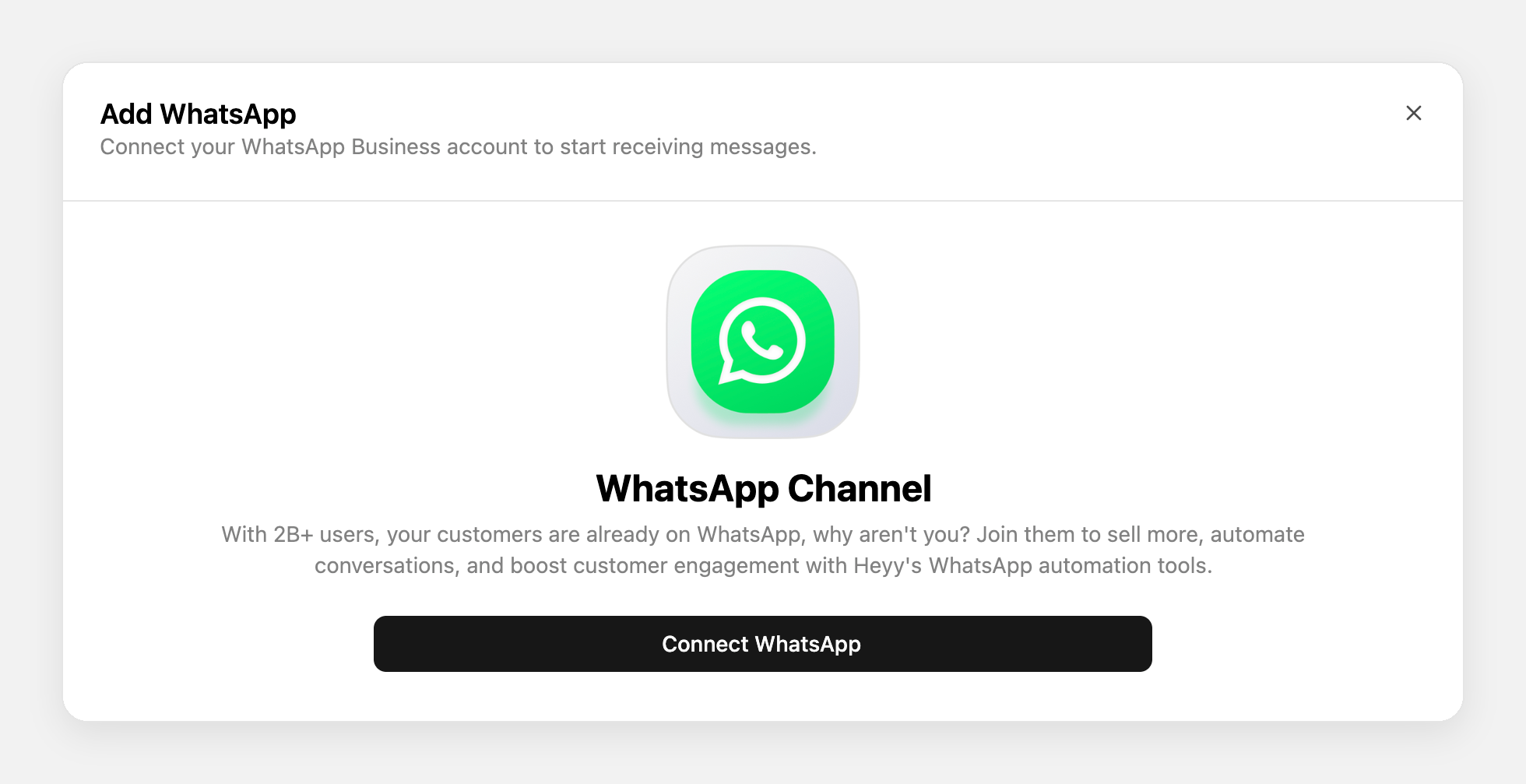
Log in to Heyy, go to Settings → Channels → Add Channel, select WhatsApp, and click Connect Number. Choose Cloud API, which is recommended for most businesses, or Coexistence, which lets you keep using the WhatsApp Business app on your phone.
Step 2: Create your message template
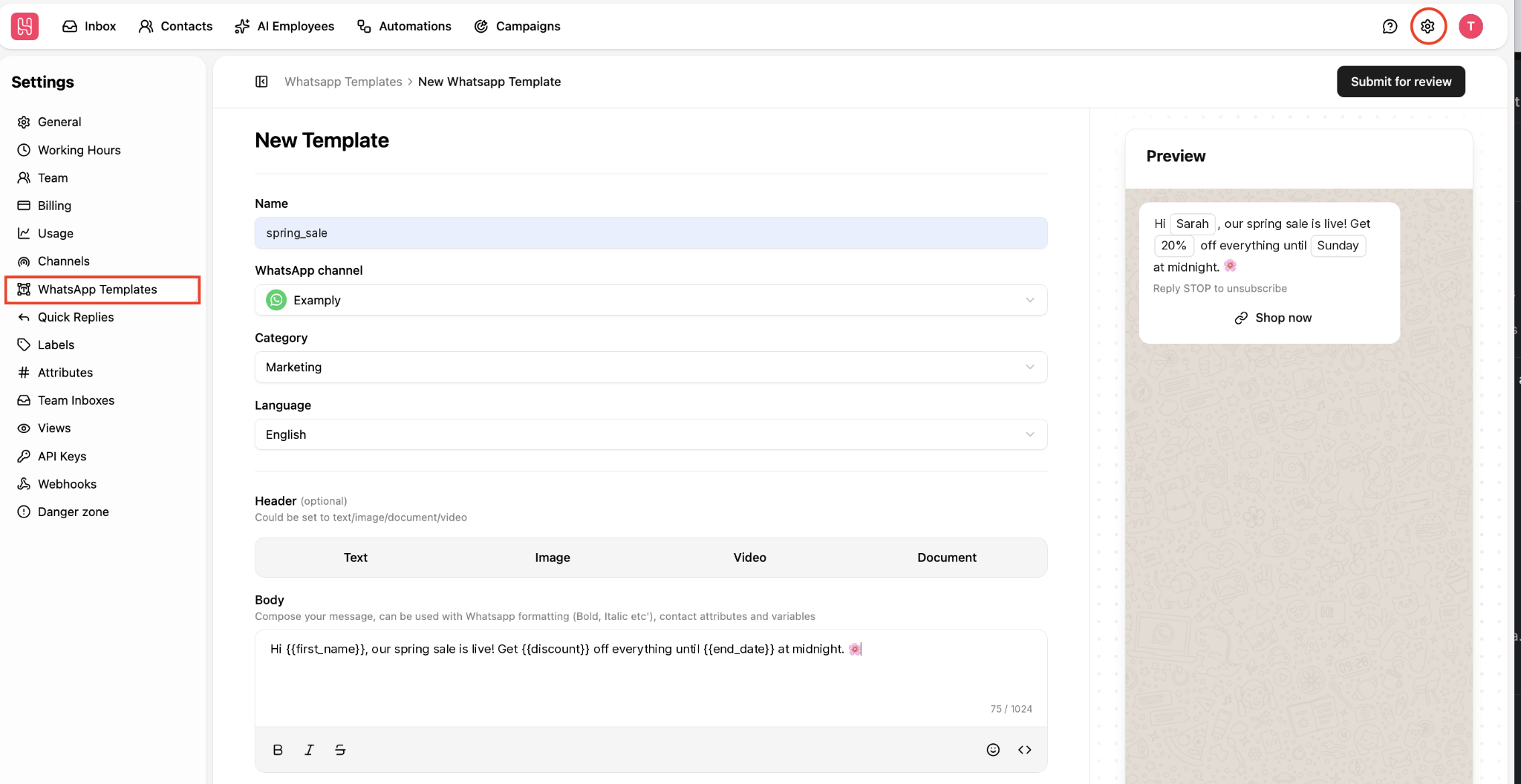
Go to Settings → WhatsApp Templates, write your message, choose its category, add variables like {{name}}, and submit it to Meta for approval.
Step 3: Create a campaign and choose your audience
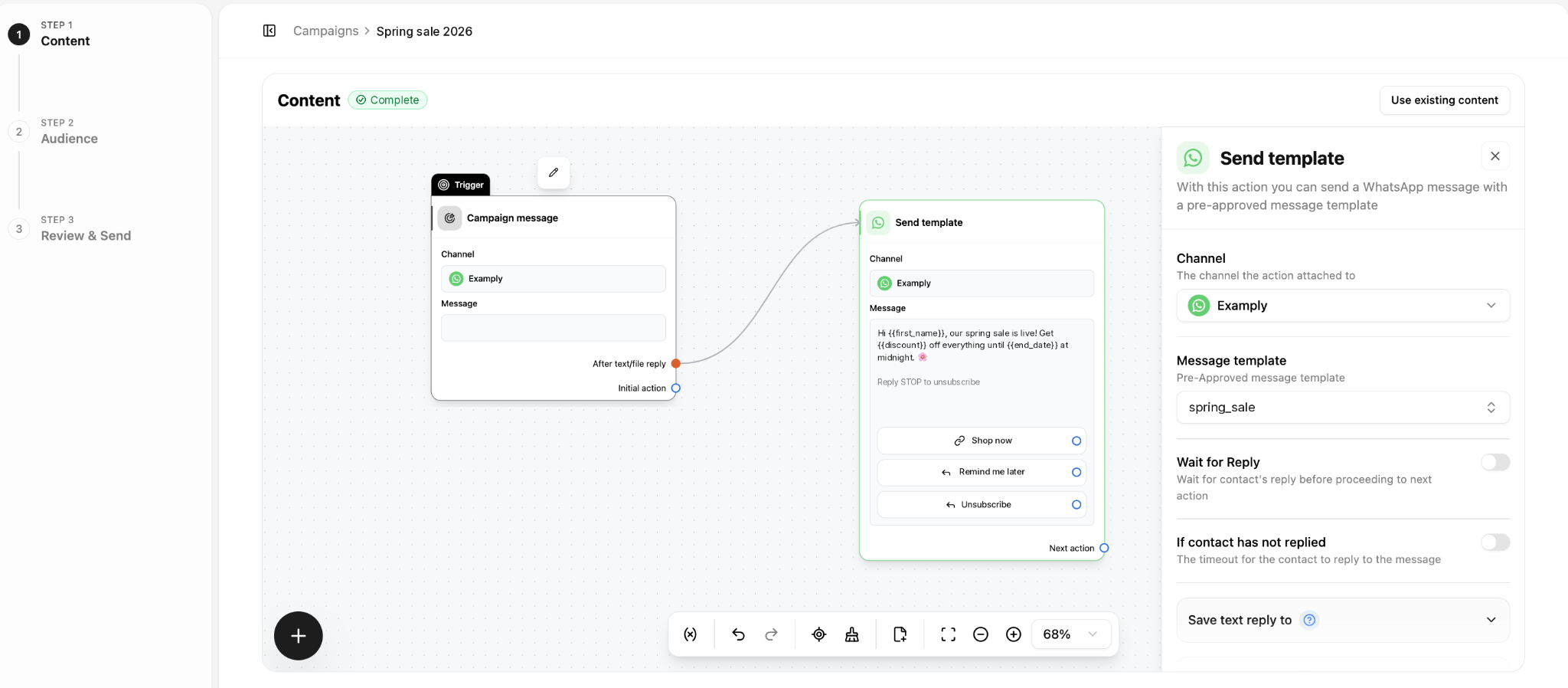
Open Campaigns, name your campaign, and choose your WhatsApp channel. Then pick your audience from a saved contact view or filters, like “customers who opted in and bought in the last 90 days.”
Heyy only sends to contacts who are eligible to receive outbound messages. That means fewer blocks and spam reports, a healthier quality rating, and no paying for messages nobody wanted.
Step 4: Review the checklist and send a test
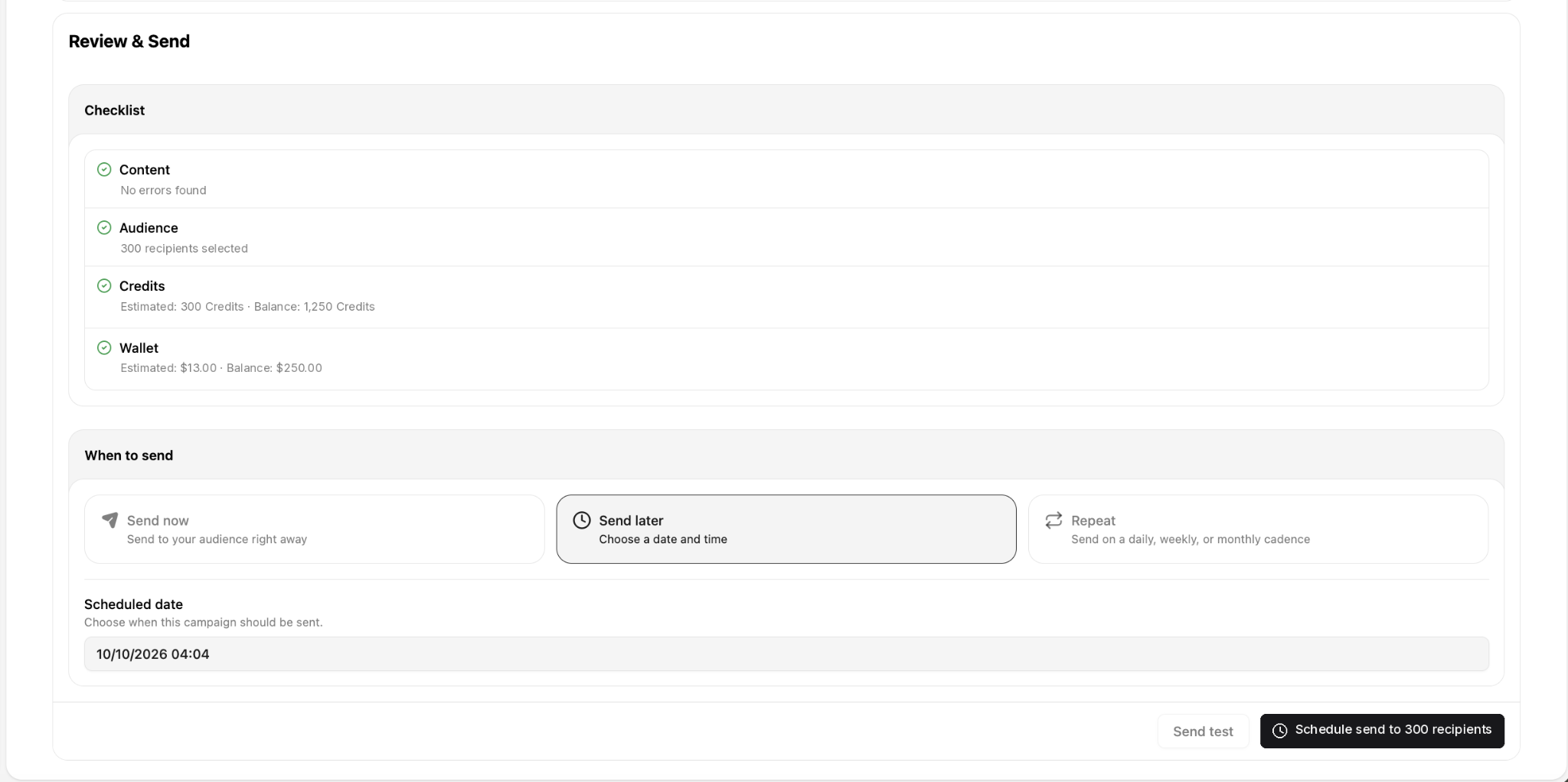
Before anything goes out, the Review & Send screen checks four things: your content, your audience, your credits, and your wallet balance, with an estimate of what the campaign will use. Fix anything flagged, then use Send test to see exactly what customers will receive.
Step 5: Choose when to send
Pick one of three options:
- Send now: goes to your audience straight away.
- Send later: choose a date and time.
- Repeat: sends on a daily, weekly, or monthly schedule.
Step 6: Track the results
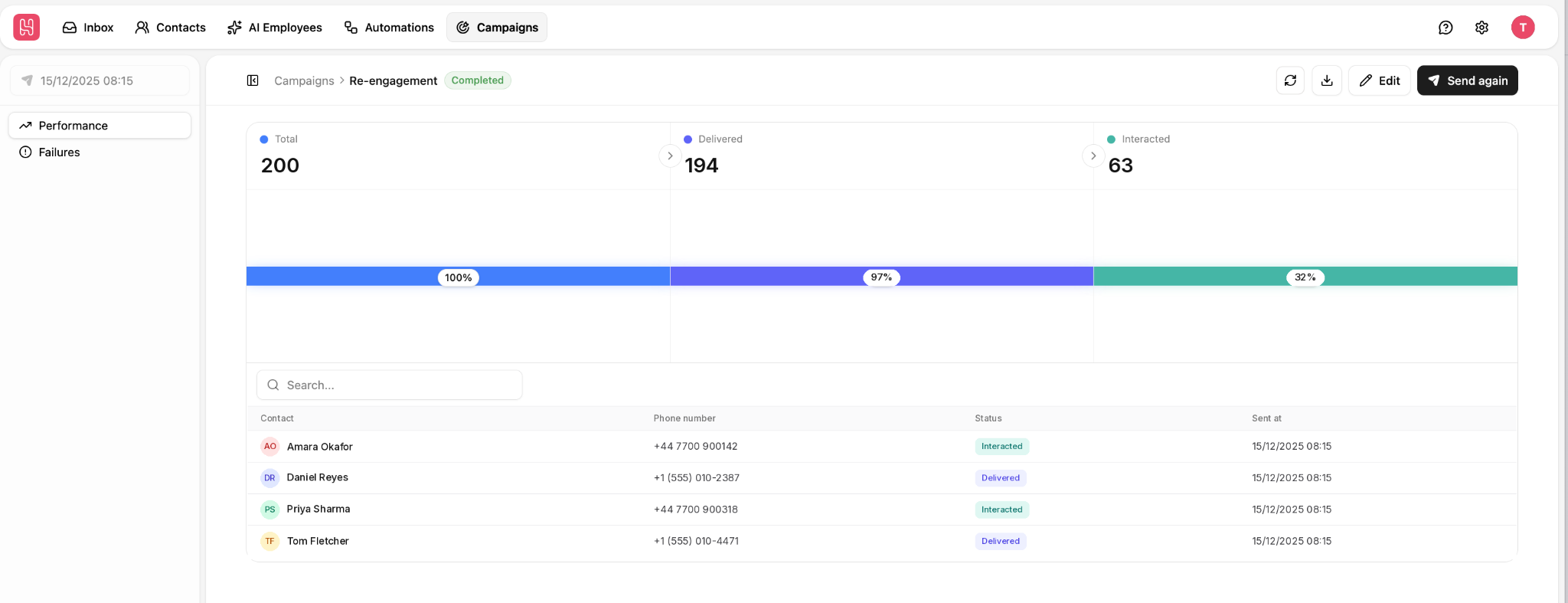
The campaign page shows how many messages went out, how many were delivered, and how many people interacted. The Failures view shows which messages didn’t get through, so you can fix them. When you’re ready for the next round, use Send again.
Be ready for the replies
A good campaign starts conversations. An AI Employee can answer the questions that come back, around the clock, and hand anything that needs a person to your team in the shared inbox. For more on building campaigns that turn into sales, see our guide to WhatsApp chatbot marketing.
Template requirements and common rejection reasons
Getting a template approved the first time saves you days. These are the most common reasons templates are rejected or reclassified.
Choosing the wrong category. Submitting a promotion as a utility message to pay less rarely works. A discount code inside a “your order has shipped” message is marketing, and Meta treats it that way. Choose the category that matches the content.
Vague variables. A variable should hold something specific, like {{customer_name}} or {{order_number}}. A variable that could contain any text at all, like {{message}}, looks open to misuse.
No way to opt out. It isn’t required for every template, but marketing messages should tell people how to stop receiving them, for example “Reply STOP to unsubscribe.” It’s good practice, and it keeps your block rate down.
Bulk message templates you can use
Copy these and adapt them. Anything in {{double brackets}} is filled in for each person.
1. Promotion (marketing)
Hi {{name}}, our spring sale starts today: 20% off everything until Sunday. Shop here: {{link}} Reply STOP to unsubscribe.
2. Product launch (marketing)
Hi {{name}}, the new {{product_name}} is here, and you’re one of the first to know. Take a look: {{link}}
3. Back-in-stock alert (marketing)
Good news, {{name}}! {{product_name}} is back in stock. Grab yours before it sells out again: {{link}}
4. Event reminder (utility)
Hi {{name}}, a reminder that your place at {{event_name}} is booked for {{date}} at {{time}}. Reply here if you have any questions.
5. Re-engagement (marketing)
Hi {{name}}, it’s been a while! Here’s 10% off your next order, valid until {{expiry_date}}: {{link}}
6. Account update (utility)
Hi {{name}}, your {{plan_name}} subscription renews on {{date}}. No action is needed. Reply here if you’d like to make any changes.
Best practices for every bulk send
Only send to people who opted in. Not “they bought from us once,” and not “they gave us their number for delivery.” A clear opt-in to hear from your business is the only list worth sending to and also make it easy to opt out.
Segment your audience. Sending the same message to everyone is the quickest way to get blocked. Split your list by what people bought, where they live, or how recently they engaged, and tailor the message to each group.
Personalize beyond the name. “Hi Sarah” is a start. “Hi Sarah, the trainers you looked at are back in your size” is what makes people reply.
Match the template category to the content. Keep promotions in marketing templates and updates in utility templates.
Send at sensible local times. A promotion at 6 a.m. or 11 p.m. is an easy way to get blocked. If your customers are in several countries, use Send later to time each send for their time zone.
Check your quality rating after each campaign. If it drops, pause your marketing messages, look at what went wrong (the audience, the timing, or the message), and fix it before the next send.
Bulk WhatsApp messaging FAQs
1. What is bulk WhatsApp messaging?
It’s sending one message, usually personalized, to many people at once. Each person receives it as a private chat, so nobody sees who else got it.
2. How many contacts can I reach with one bulk send?
In the WhatsApp Business app, a broadcast list reaches up to 256 contacts, and only those who've saved your number. On the WhatsApp Business Platform, new business portfolios can reach 250 different people in a rolling 24-hour period outside the customer service window, and that limit grows automatically as you send good-quality messages. For large lists, build up over time or split the campaign across several days.
3. Can I send bulk messages to a list I bought or scraped?
No. The people on it never agreed to hear from you, which breaks Meta’s opt-in rules. They’re also far more likely to block or report you, which damages your quality rating.
4. How long does setup and template approval take?
Connecting your number usually takes minutes, provided your Meta Business Portfolio’s details are complete. Many templates are reviewed quickly, but some take longer, so submit them a few days before you need them.
5. What happens if my quality rating drops?
Your messaging limit may stop growing, and if the rating keeps falling, Meta can restrict your sending. Pause your marketing messages, work out what caused the drop (the audience, timing, or message), and fix it before your next campaign.
6. Can I schedule bulk WhatsApp messages?
Yes, through the WhatsApp Business Platform. In Heyy, you can send a campaign now, schedule it for later, or repeat it daily, weekly, or monthly. Our guide to scheduling WhatsApp messages covers every option.
Send your first official WhatsApp campaign
Bulk messaging on WhatsApp works best when it’s done properly: opted-in customers, approved templates, relevant messages, and a plan for the replies.
With Heyy, you can build campaigns for the right audience, send them now, later, or on repeat, track every delivery, and let an AI Employee handle the conversations that follow. It all runs on Meta’s official WhatsApp Business Platform, alongside the rest of our WhatsApp automation tools.
More blog posts to read

Ready to Automate Support
Across Every Channel?
.svg)
.avif)